
An approved license key extension must be downloaded and saved on your Statseeker server before its local licence reflects the new expiry date.
- Confirm with Statseeker Support or your account manager that the extension has been approved for your Server ID. Downloading a key does not itself grant an extension.
- Sign in as an administrator. Open Admin Tool > General > License Key and note the current expiry date.
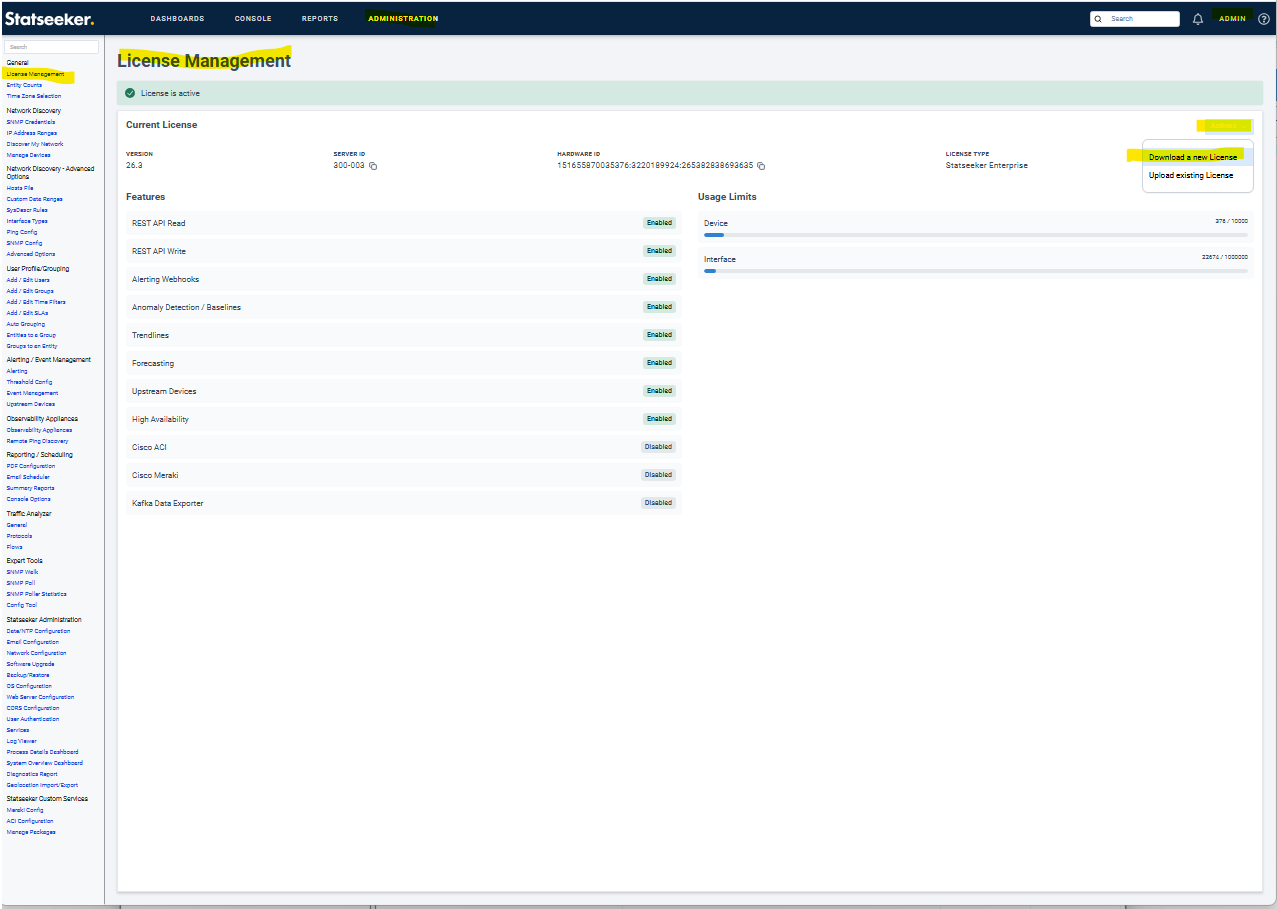
- Click Edit, check the Server ID and select Download a new Key.
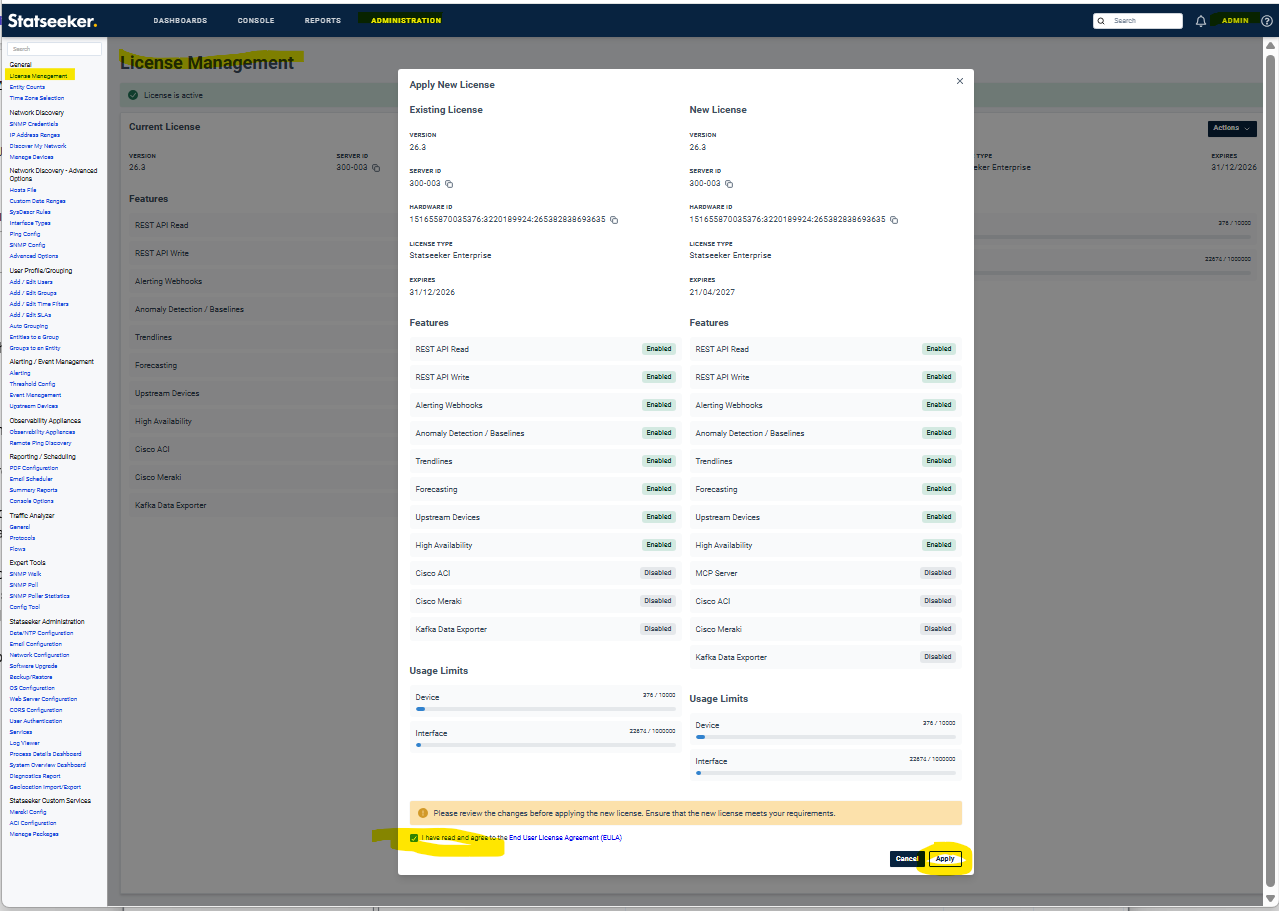
- Review the proposed licence details. Confirm that the expiry matches the approved extension, accept the licence terms and click Save.
- Reopen the licence page and verify the updated expiry date. If the date is unchanged or the download fails, contact Support with your Server ID, Hardware ID and the error or screenshot.
For Offline license extenstion request version-specific instructions from Support. Manuallly applied key strings are supplied through 25.2 and a licence file from 25.3 onwards.
See How do I download a License Key? and the 25.2 documentation — Licensing Requirements.