
Registration
Register
-
Go to support.statseeker.com
-
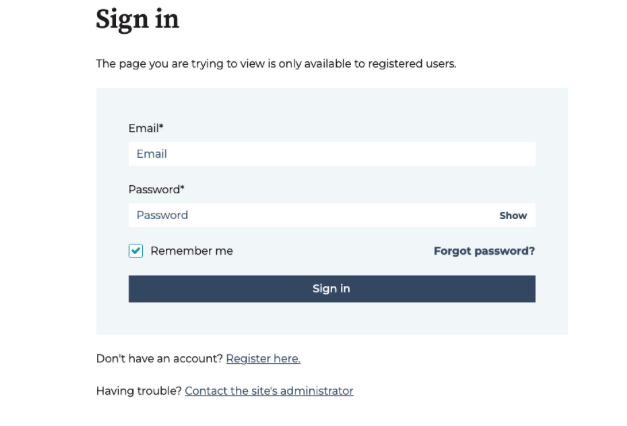
You will be directed to a Sign In page.
-
If you already have an account, enter your email and password.
-
If you are new, click Register here...
-
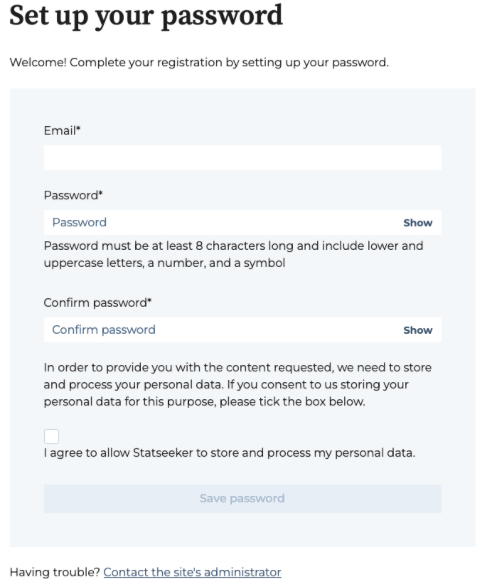
Enter your email.
-
Create and confirm a secure password (8+ characters, upper/lowercase, number, symbol).
-
Tick the consent box.
-
Select Save password.
-
Check Your Email...
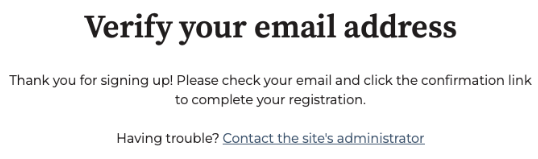
You’ll be prompted to verify your email address. Open your inbox and look for a message from Statseeker.
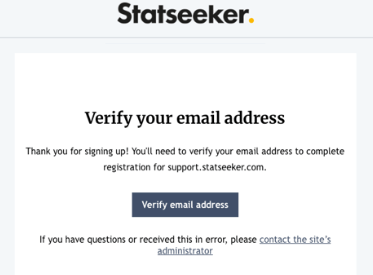
Open your email and click Verify email address. This completes your account activation.
Sign in
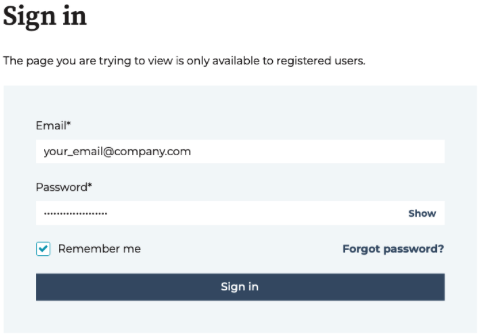
If you are not directed to the Statseeker Support Portal, go to support.statseeker.com and sign in…
Access Denied (403)
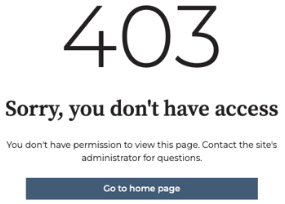
If you see a 403 - You don't have access page, your account is not yet registered or verified.
If you have verified your email but cannot access the portal Statseeker needs to complete your registration before you can gain access. If you have already requested access directly with Statseeker you should not see this message, otherwise please allow one business day for your request to be processed.
If you still cannot gain access to the portal, please email support@statseeker.com for help.
Raise a Ticket
To submit a support or service request:
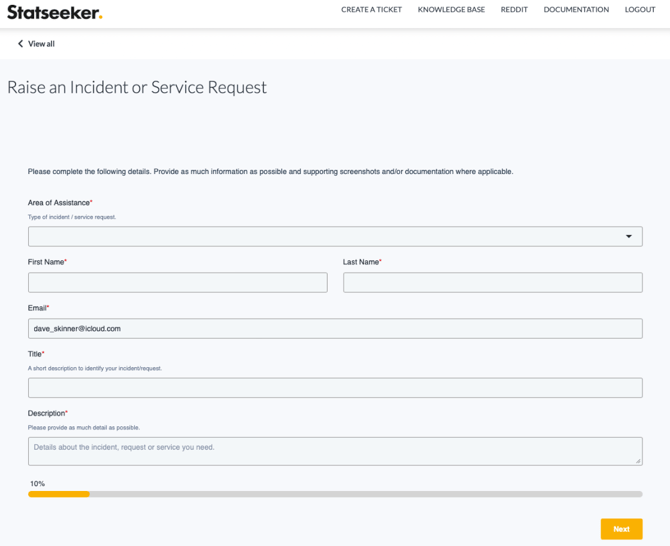
- Go to Create a Ticket.
- Complete the fields1:
- Area of Assistance (type of issue or request)
- First Name / Last Name
- Title
- Description (include details, screenshots, steps to reproduce where relevant)
- Select Next to continue.
NOTE: The details we ask for will change depending on the type of request. Please be sure to complete all required fields. If you forget, you can go back to a previous page.
Ticket Dashboard
After logging in, the Tickets dashboard displays all requests.
- Use the search bar (min. 3 characters) to find tickets.
- Filter by View and Status.
- Export your ticket list via Export to CSV.
- Use the top navigation for Knowledge Base, Documentation, social channel or creating new tickets.
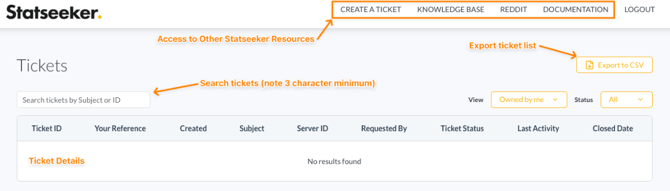
Ticket List (Dashboard)
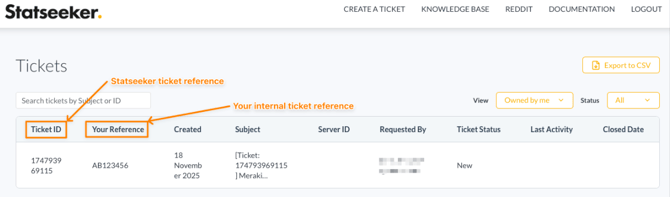
This section explains how to read the ticket list, including Statseeker’s ticket reference and your internal reference.
This view shows all tickets you've raised or have access to.
- Ticket ID – Statseeker’s internal ticket number.
- Your Reference – Your organisation’s internal reference (optional).
- Columns also show: Created date, Subject, Server ID, Requested By, Ticket Status, Last Activity, and Closed Date.
- Use search, filters, and CSV export as needed.
Ticket Detail View
Selecting a ticket shows:
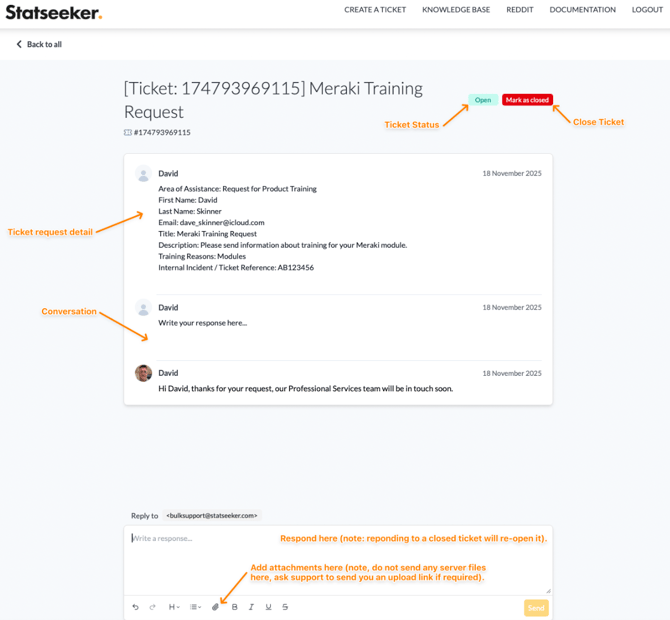
- Request details (submitted information).
- Full conversation history.
- Ticket status (Open / Closed).
- Mark as closed button (closes the ticket).
- Response box for updates (replying to a closed ticket reopens it).
- Attachment upload option (avoid sending server files, ask support for an upload link if needed).
Best Practice & Benefits
You can still use the support form on the Statseeker website and respond via email to tickets, however there are benefits using the portal:
- Faster Support: The portal ticket form is designed to be dynamic and will ask contextual questions based on your topic. This gives Statseeker more of the information we need to start working on your ticket.
- Better Visibility: You and your team can see all tickets raised within your company, meaning less need to ask for updates on outstanding incidents or requests.
- Less Clutter: Responding via email tends to include the email thread, making it difficult to easy read and follow progress.
- Better security: All communication is authenticated which reduces risk of email forwarding or data leakage.
- X-Refs and Reporting: Ability to add your own internal reference (strongly recommended) and download tickets to csv for internal analysis and reporting.
Summary
The Statseeker Support Portal allows you to:
- Register and verify your account.
- Log in securely.
- Raise support or service requests.
- Track, search, and export ticket information.
- Communicate directly with Statseeker Support within each ticket.
If you need additional support or cannot gain access to the portal, please email support@statseeker.com for help.