
-
Almost all network devices will have a loopback interface. This interface typically doesn’t carry traffic that is useful from a monitoring point of view, and therefore doesn’t need to be monitored
- It’s common that Windows servers will present multiple virtual interfaces in addition to the ‘real’ interfaces that we care about
-
Ethernet switches carrying VLAN traffic will often populate a virtual interface for each VLAN. These virtual interfaces can usually be ignored because the important statistics can be gathered from the underlying real interface
Each of these interfaces, real or virtual, important or not, will consume an interface license on your Statseeker server.
This is no problem if you have lots more licenses than you need. But if not, it would be useful to know how to free up some of these licenses consumed by these un-necessary interfaces, so you could then re-deploy them on additional interfaces that do carry important traffic.
How can we easily find out how many licenses are used, and how many remain available? The “License Management” page on the Administration tab tells us this information.
Your Statseeker License record contains a count of devices that Statseeker is currently monitoring.
This count is updated whenever Statseeker rebuilds its configuration information, a background process which is run as a component of many processes including device discovery, network rewalks, retiring, and deleting devices.
To view your current device count in the Statseeker GUI:
- Select Administration tab > General > License Management
- Review the details in the Usage Limits section
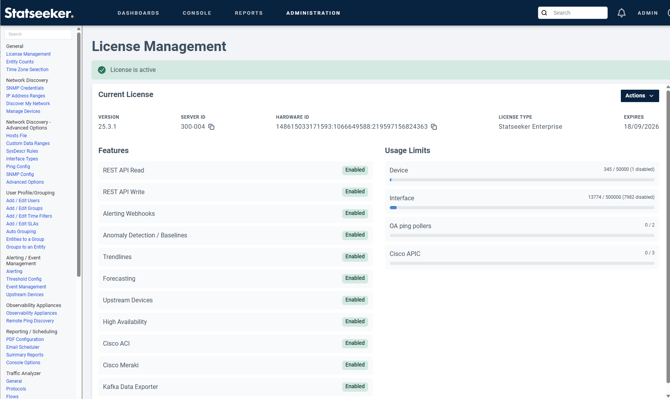
To exclude ports from being counted by the license please use the Auto Grouping rules to match the interfaces based on using RegEx to exclude interfaces using Auto-grouping.
To do this we need to identify a unique characteristic such as an ifName pattern.
The procedure to create a new Auto Grouping rule for interfaces to do this using an ifName pattern is below:
- On the Statseeker Administration GUI page select “Auto Grouping" in the "User Profile/Grouping" section, and then click the “Add” button.
- Enter a name for the rule in the "Rule Name" box.
- Enter a name of your new rule group in the “Groups to populate” field.
- Set the "Group Type" to “Interface” using the drop-down list.
- We only want to run this rule "on demand" so set the "Status" to "Off".
- In the "Filters" section set the "Attribute Filter" to "ifName" using the drop-down list and set the RegEX pattern to match in the next box.
This example matches on ifName, what is matched can chosen to suit your situation with other attributes such as ifAlias which is basically the description.
Please note any interface that is disabled will need to be re-enabled manually if you wish to poll it in the future. - Then click the "Show Advanced Options" button to open the "Configuration" section.
- Then set the interface polling off by selecting "ifPoll" in the "Items" and then selecting "off" using the drop-down list in the adjacent box.
- Then use the "Test Rule" button to show what will be matched by the rule, what config changes will be done and the changes that will be done to the licensing.
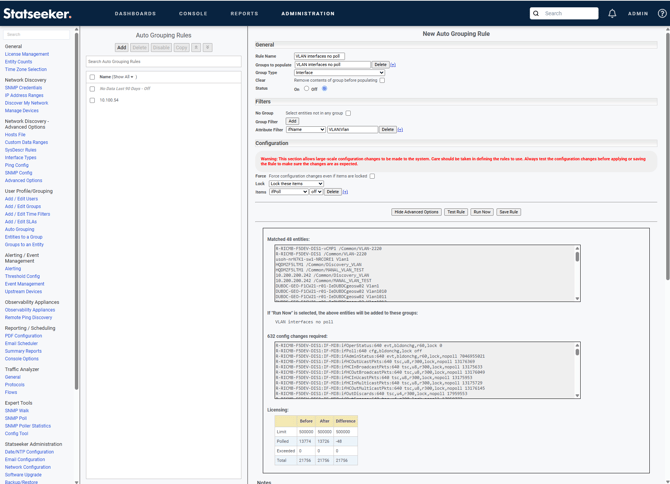
The Test Rule button will not change anything.
In the example above we are RegEx matching on either VLAN or Vlan. - When you are happy with what the rule does you can save the rule (using the "Save Rule" button) and run the rule (using the "Run Now" button) which will make the changes.
This rule can be made more specific by using both grouping and regex to target interfaces more specifically.
Please see both the Notes on the page below the Auto Grouping functions and the Statseeker documentation linked below for further information:
https://docs.statseeker.com/groups/automated-grouping/
Please also note the this is a very simple rule that may affect many interfaces.