
WARNING: Please do not attempt this procedure if you do not have access to the VMware console of the Statseeker machine as if network connectivity is lost this access will be needed to restore service.
Please also note that this procedure requires a reboot and during the reboot Statseeker will not be "collecting" data.
This article was created on 24/07/2026 using Statseeker version 25.3 and VMware vSphere Client version 6.7.0.54000 - ESXi 6.7 Update 2 and later (VM version 15) and is intended as a guide to this process.
Suggested Procedure:
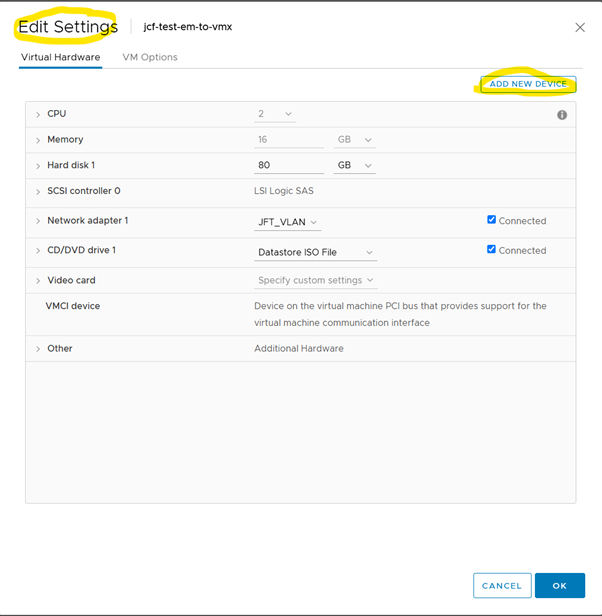
Go to the VM configuration – “Edit Settings” and click “ADD NEW DEVICE”
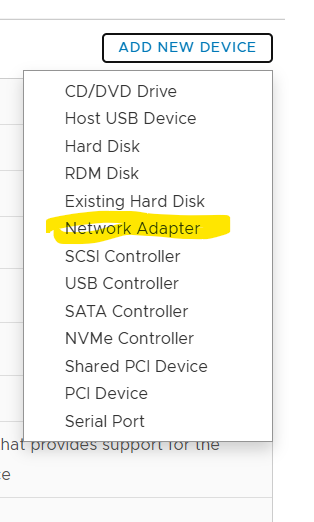
Click “Network Adapter”
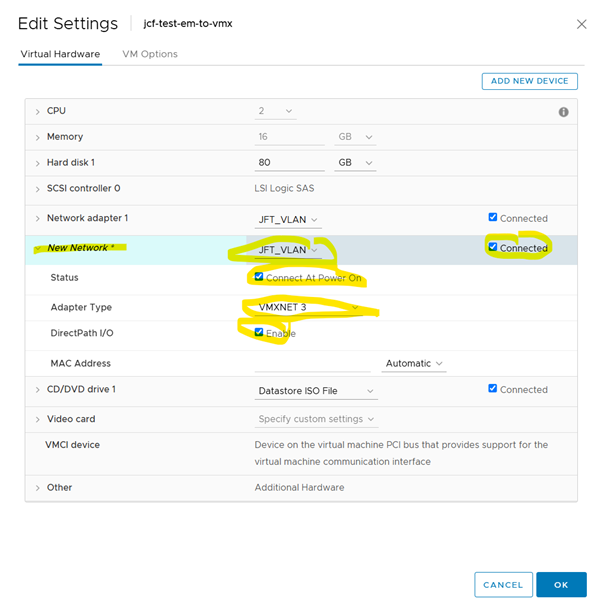
Open the “New Network” and check that it is and will remain connected:
Check the new interface is available in the Statseeker GUI
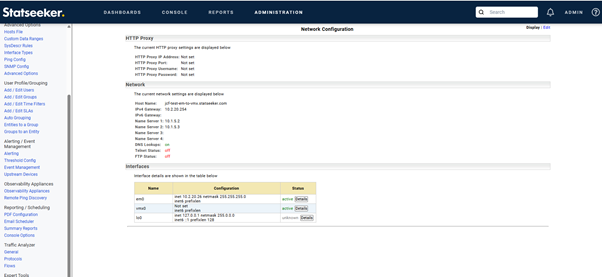
Use the “Details” button next to em0 to check if “Syslog Collection is “on”:
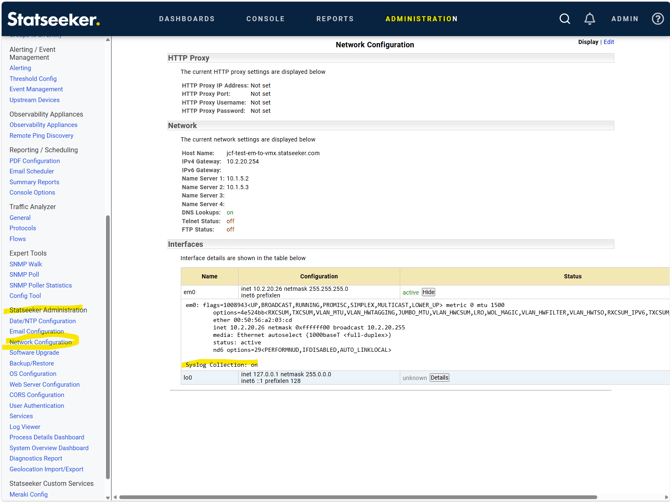
Go to the command line and check you can see both interfaces em0 and vmx0:
statseeker$ ifconfig -a

em0: flags=1008943<UP,BROADCAST,RUNNING,PROMISC,SIMPLEX,MULTICAST,LOWER_UP> metric 0 mtu 1500
options=4e524bb<RXCSUM,TXCSUM,VLAN_MTU,VLAN_HWTAGGING,JUMBO_MTU,VLAN_HWCSUM,LRO,WOL_MAGIC,VLAN_HWFILTER,VLAN_HWTSO,RXCSUM_IPV6,TXCSUM_IPV6,HWSTATS,MEXTPG>
ether 00:50:56:a2:a7:b3
inet 10.2.20.26 netmask 0xffffff00 broadcast 10.2.20.255
media: Ethernet autoselect (1000baseT <full-duplex>)
status: active
nd6 options=29<PERFORMNUD,IFDISABLED,AUTO_LINKLOCAL>

vmx0: flags=1008943<UP,BROADCAST,RUNNING,PROMISC,SIMPLEX,MULTICAST,LOWER_UP> metric 0 mtu 1500
options=4e403bb<RXCSUM,TXCSUM,VLAN_MTU,VLAN_HWTAGGING,JUMBO_MTU,VLAN_HWCSUM,TSO4,TSO6,VLAN_HWTSO,RXCSUM_IPV6,TXCSUM_IPV6,HWSTATS,MEXTPG>
ether 00:50:56:a2:07:e0
media: Ethernet autoselect
status: active
nd6 options=29<PERFORMNUD,IFDISABLED,AUTO_LINKLOCAL>

lo0: flags=1008049<UP,LOOPBACK,RUNNING,MULTICAST,LOWER_UP> metric 0 mtu 16384
options=680003<RXCSUM,TXCSUM,LINKSTATE,RXCSUM_IPV6,TXCSUM_IPV6>
inet 127.0.0.1 netmask 0xff000000
inet6 ::1 prefixlen 128
inet6 fe80::1%lo0 prefixlen 64 scopeid 0x3
groups: lo
nd6 options=21<PERFORMNUD,AUTO_LINKLOCAL>
Run Statseeker’s command line admin tool "ssadmin" the password for this tool is the root user's password.
For more information on the ssadmin tool please see the page linked below:
https://docs.statseeker.com/administration/ssadmin/
statseeker$ ssadmin

System Administration Utilities

To access Statseeker, enter the following URL into your browser:

https://10.2.20.26

Please enter the system root password:

Password:
Choose option 4 "Network Configuration"
System Administration Utilities

Main Menu

1. Date, Time and NTP
2. Email
3. HTTP Proxy
4. Network Configuration
5. Software Upgrade
6. Backup / Restore
7. Passwords
8. Operating System
9. Web Server
10. Reset
11. Create Observability Appliance USB Flash
12. Actions/Services
q. Quit

Enter option: 4
Then select option 3 "Set IP / netmask / media"
System Administration Utilities

Network Configuration

1. Display network configuration
2. Display status of interfaces
3. Set IP / netmask / media
4. Set default gateway
5. Set default IPv6 gateway
6. Add name servers
7. Delete name servers
8. Set hostname.domainname
9. Turn Telnet server off
10. Turn Telnet server on
11. Turn FTP server off
12. Turn FTP server on
13. Turn DNS lookups off
14. Turn DNS lookups on
q. Back to Main Menu
Enter option: 3
Unconfigure em0 by selecting option 1
IP / Netmask / Media Configuration

1. em0: inet 10.2.20.26 netmask 255.255.255.0
2. em0: IPv6 Not Configured
3. vmx0: Not Configured
4. vmx0: IPv6 Not Configured
q. Back

WARNING: The server will be rebooted if interface details change.

Enter option:1

Would you like to unset IP configuration for interface em0 (y/n) [n] ? y
Then option 3 to configure vmx0, choose media select auto (option 2) for the last parameter.
vmx0 Configuration
IP address(Not Set): 10.2.20.26
Netmask(Not Set): 255.255.255.0

Supported Media Types:

1. nd6 options=29<PERFORMNUD,IFDISABLED,AUTO_LINKLOCAL>
2. mediaselect auto

Media Type(1-2): 2
After you have set the IP address and netmask the tool will return to the “IP / Netmask / Media Configuration” page, check that vmx0 now has the same information that em0 used to have:
IP / Netmask / Media Configuration

1. em0: Not Configured
2. em0: IPv6 Not Configured
3. vmx0: inet 10.2.20.26 netmask 255.255.255.0
4. vmx0: IPv6 Not Configured
q. Back

WARNING: The server will be rebooted if interface details change.

Enter option:q
Choose q to exit the “Set IP / netmask / media” page and then q again to exit the “Network Configuration” page.
This will then bring up the page below:
Current Network Configuration

Interfaces:

em0: inet 10.2.20.26 netmask 255.255.255.0
em0: IPv6 Not Configured
vmx0: Not Configured
vmx0: IPv6 Not Configured
Host Name: jcf-test-em-to-vmx
Domain Name: statseeker.com
Default Gateway: 10.2.20.254
Default IPv6 Gateway:
Telnet: off
FTP: off
DNS Lookups: on
Name Servers: 10.1.5.2, 10.1.5.3
Press the Enter key to continue
System Administration Utilities

Network Configuration

1. Display network configuration
2. Display status of interfaces
3. Set IP / netmask / media
4. Set default gateway
5. Set default IPv6 gateway
6. Add name servers
7. Delete name servers
8. Set hostname.domainname
9. Turn Telnet server off
10. Turn Telnet server on
11. Turn FTP server off
12. Turn FTP server on
13. Turn DNS lookups off
14. Turn DNS lookups on
q. Back to Main Menu

Enter option: q
Then q to exit the ssadmin tool:
System Administration Utilities

Main Menu

1. Date, Time and NTP
2. Email
3. HTTP Proxy
4. Network Configuration
5. Software Upgrade
6. Backup / Restore
7. Passwords
8. Operating System
9. Web Server
10. Reset
11. Create Observability Appliance USB Flash
12. Actions/Services
q. Quit

Enter option: q
This will cause Statseeker to reboot
2026-07-24 10:58:40 jcf-test-em-to-vmx 2013 ssadmin Rebooting server

Shutdown NOW!

shutdown: [pid 5376]

*** FINAL System shutdown message from statseeker@jcf-test-em-to-vmx.statseeke

r.com ***

System going down IMMEDIATELY

System shutdown time has arrived
Go to the VMware console to watch Statseeker’s recovery
After Statseeker has restarted check the network configuration, expand this using the “Details” button for vmx0 to see all the information:
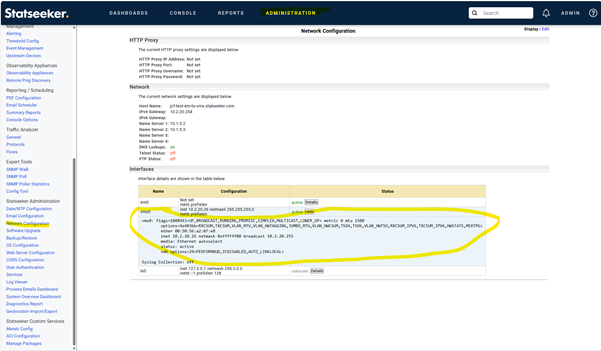
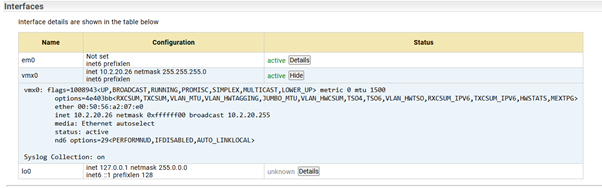
If you are listening for Syslog on Statseeker it will need to be “turned on” again in Edit mode (in blue top left), then the “Edit” button for vmx0, then select the “On” setting in the “Syslog Collection” drop-down and then click the “Save” button for that section.
Re-check with the details button for vmx0:
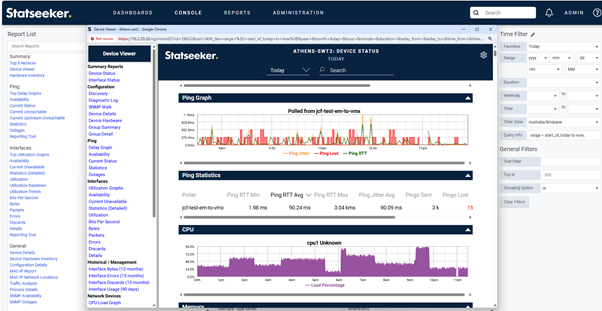
Then check that Statseeker is collecting both Ping and SNMP data, I suggest running the Device Viewer from the Console for this or using the Device Overview dashboard for a “known good” device.
You may see a significant improvement in ping performance.
e.g.
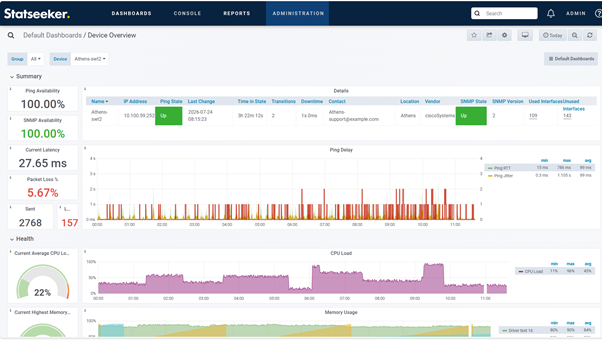
Please also check that any MAC-IP, Syslog, Netflow, ACI, Meraki data collection you have is working.
Once you have confirmed Statseeker is working OK on the new interface you can
go back to the VMware configuration and delete the E1000E interface:
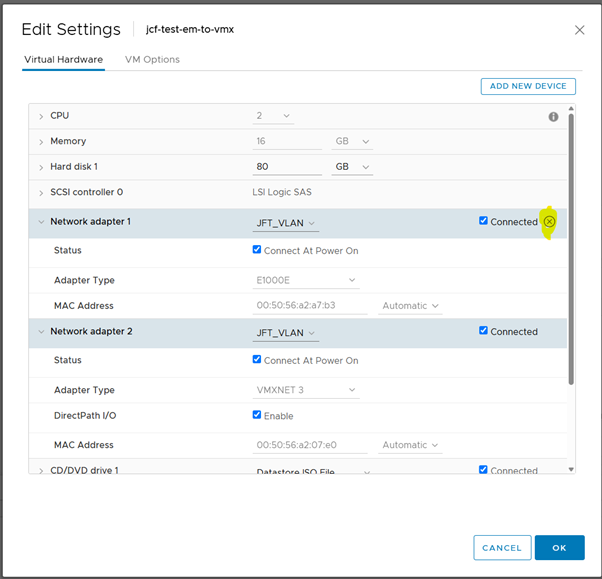
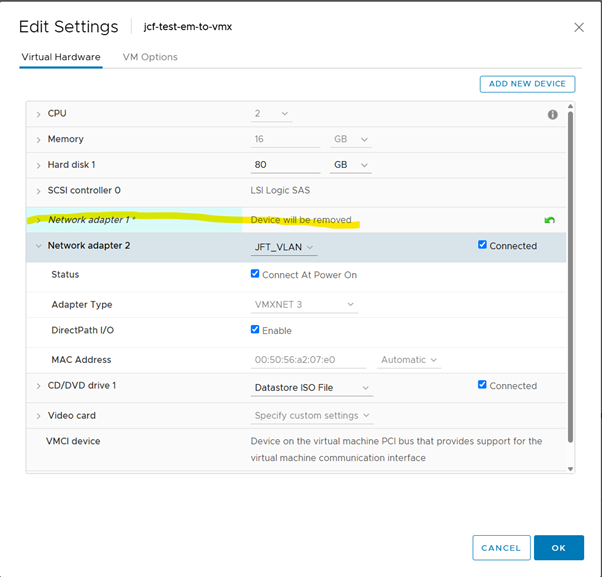
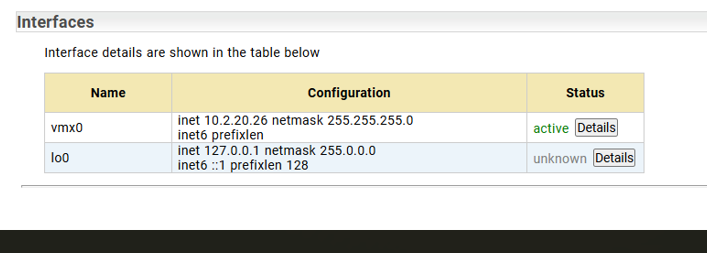
This change should be reflected quite quickly on Statseeker’s “Network Configuration” page:
Please note that Statseeker states in the “Statseeker System Requirements:
“ for “Virtual machine hardware recommendations are designed for deployment on VMware” that “Network Interface Controller should be VMXNET3” as this interface type gives the best performance.
https://docs.statseeker.com/installation/hardware-requirements/